Steering Claude Code Without a Keyboard
When we make delegating work to AI effortless, do we also make careful supervision less likely?
I ran into that question by building an interface for Claude Code from speech and an 8BitDo Micro game controller. Speech says what I want, and a thumb press approves what the agent did. It works. Building a small web app with it took one keyboard press. It also makes approving a change cost almost nothing, while reading the change costs what it always did.
This post covers what I built, what the HCI course I took says is good and bad about it, and how to test whether easy approval makes reviewers careless. It separates what I saw from what I only suspect.
Two inputs
Don Norman wrote The Design of Everyday Things about doors, stoves and light switches. He could not have pictured Claude Code. His principles still apply to it, because they are about people, and people have not changed.
Not long ago, writing code without opening an editor was new. With agents like Claude Code, you describe the change and approve what the agent does. "Writing code" is a loose term for that, since Claude writes it and I steer. If steering is the work, the input devices can be designed around it, and the keyboard is one choice among several. My guess, and it is only a guess, is that keyboards will one day look as dated as typewriters.
In a post from April 13, 2026, Robert Kovacs described steering Claude Code this way daily for several weeks, with the same controller and Wispr Flow for dictation. He found that talking makes him state the intent, constraints and edge cases up front, so Claude's first attempt lands closer. He also found that speech cannot approve anything. Saying "yes" types the word "yes" into the chat box, so approvals need a real key.
Kovacs noticed that he explains himself better when he talks. That matters, because explaining what you want is a skill, and it is the one part of the work Claude cannot do for you. I suspect speaking builds that skill. When you say a vague request out loud, you can hear that it is vague. A typed request is easier to send without noticing.
That is the lens for the rest of this post. An interface for working with AI changes how fast you go, and it also changes what you practise. Speech may train you to say what you mean. One-press approval may train you to stop reading.
So the goal is not to take all the effort out of working with AI. It is to remove the effort that gets in the way of good work and keep the effort that builds skill. If speaking makes me clearer about what I want, that effort is worth encouraging. If one-press approval makes me less likely to examine a change, the effort it removed was the useful kind. Both are usability questions, but only one is about whether I can operate the interface. The other is about what the interface helps me get better at.
The prototype
The prototype has three parts, all on a Mac:
- An 8BitDo Micro, a Bluetooth controller about the size of a keychain, sold for page turning and Anki. At the time of writing it cost $24.99 on Amazon. In keyboard mode the Mac sees it as a keyboard.
- FluidVoice, a free, open-source dictation app. You press a key, talk, and press it again, and it types the text wherever the cursor is. It runs speech models on the Mac unless you turn on a cloud provider.
- Karabiner-Elements, a free, open-source key remapper. It can apply a rule to one device only, so the controller changes and the real keyboard does not.
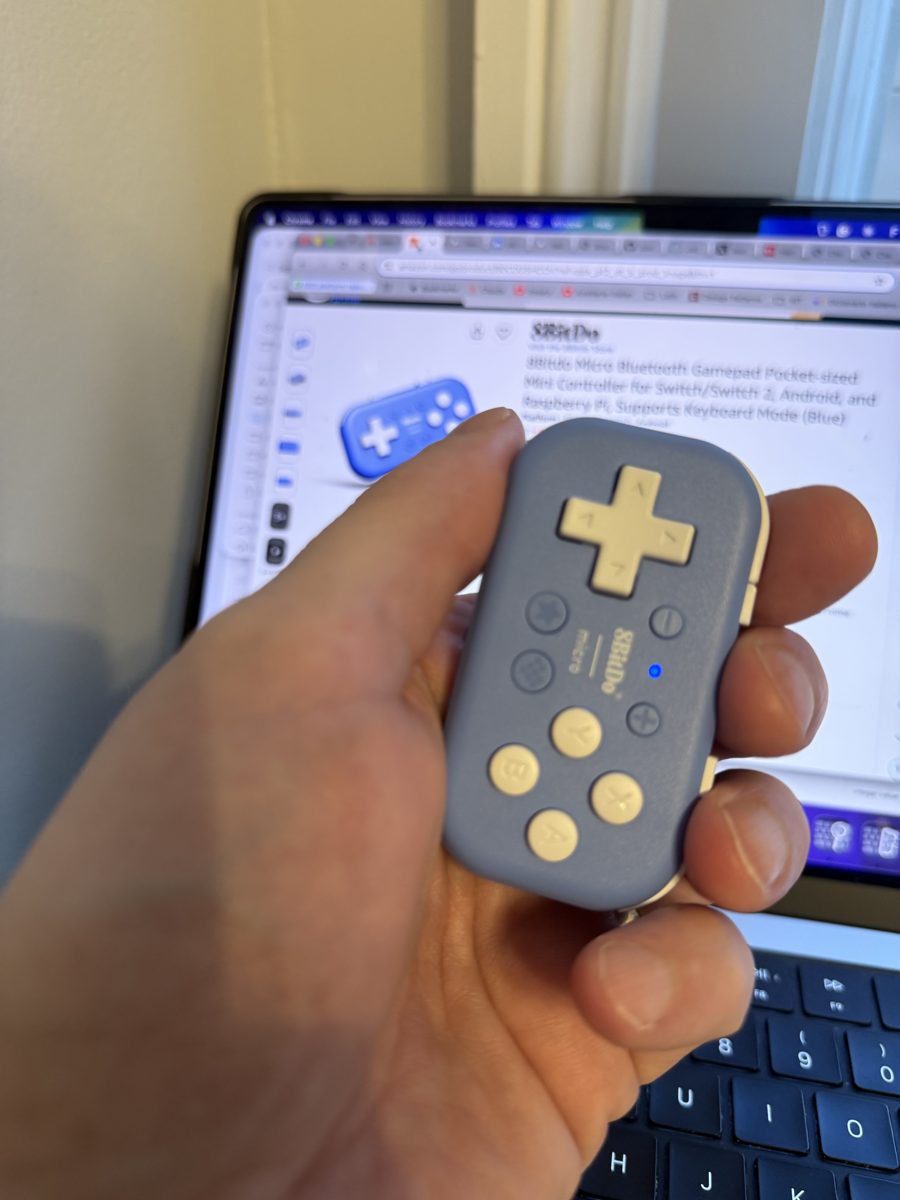
Each button does one thing in Claude Code:
| Button | Key | In Claude Code |
|---|---|---|
| L | Right Option | Start FluidVoice listening, and press again to stop |
| A | Enter | Accept, submit, or pick the highlighted option |
| B | Esc | Reject, or interrupt Claude while it works |
| D-pad | Arrow keys | Move between options in a question or a permission prompt |
| X | / | Open the command menu |
| R | Shift+Tab | Switch Claude Code's permission mode |
| Plus, minus | Cmd+Shift+], Cmd+Shift+[ | Next and previous Terminal tab, one agent per tab |
| Y | Cmd+Tab | Switch back to the last app, such as from the browser to the terminal |
The appendix has everything needed to copy it.
Three rounds to get it working
Round one: every button typed a letter. In keyboard mode, A types g, B types j, and the D-pad types c to f. Claude Code listens for Enter, Esc and the arrow keys, so out of the box the controller did nothing useful. 8BitDo's remapping app has no macOS version, and the iPhone version had a one-star rating when I looked, so I wrote a Karabiner rule instead.
Round two: the remap failed without saying so. After I approved Karabiner's permission prompts, the buttons still typed letters. Karabiner's log said the permissions were not granted, because its setup had stopped at the Accessibility step. Later, quitting Karabiner to restart it turned the remap off, and the buttons went back to letters with no warning. Both times the screen looked exactly like a rule with a typo. Only the log said what was wrong.
Round three: slash commands. Claude Code runs a command only when the message starts with a typed /. When I said "slash", FluidVoice typed the word. The fix was to map X to /. Pressing X opens Claude Code's command menu. Then I press L, say one word from the command's name, such as "setup", and press L again. The menu shows only the commands that match. The D-pad moves to the right one, and A runs it. Dictation only has to get one ordinary word right, and picking from a short list is what the controller does well.
Using it
To test the interface on real work, I built a small web app with Claude Code from the controller: the Micro Tester. It draws the Micro, labels each button with its action, and lights a button up when you press it. That makes it the first item on the next-version list below, built with the thing it fixes. The build took about twelve minutes, from an empty folder to a tested, deployed page. The counts come from Claude Code's session file, apart from the keyboard presses, which I kept track of myself.
The tester below is a display, not a controller. If you have a Micro paired with your computer in keyboard mode, click the box and press the real buttons. The matching button in the drawing lights up and shows what it does. Without a Micro, the keyboard keys it sends work too, such as g for A and j for B.
| What happened | Count |
|---|---|
| Files Claude wrote or edited | 12 |
| Shell commands Claude ran, for installing, testing, building and deploying | 13 |
| Design decisions I made with the D-pad and A | 4 |
| Actions I rejected | 0 |
| Keyboard presses | 1 |
The one keyboard press came when Claude opened the page in my browser. Getting back to the terminal took Cmd+Tab, and no button sent it. Afterwards I mapped the unused Y button to Cmd+Tab, which closes that gap.
The more interesting number is a pattern. Claude asked its questions as multiple choice with a recommended option first, and I took the recommendation every time. Every approval was A. I knew the D-pad could move to another choice, and I never needed it. That could mean the recommendations were good. It could also be the start of the habit the rest of this post worries about, and from inside the session I could not tell which. The first time I moved off a recommendation came after the build, when I used the D-pad to turn down Claude's suggested next step and point out a problem. The embedded tester looked like on-screen controls, which led to the explanation above it.
I usually run several Claude Code agents at once, each in its own git worktree and its own Terminal tab. Plus and minus move to the next and previous tab, so going from one agent to the next is a single press. Getting to an agent is easy. Knowing which one is waiting for me is harder, because a tab does not say so from across the room.
Reading it as an HCI problem
I took Foundations of Human Computer Interaction at RIT during my master's degree. It was an elective, and one of the more interesting subjects in the program. The course splits human error into two kinds. A mistake is choosing the wrong goal. A slip is having the right goal and doing the wrong thing, and the fix for a slip is better interface design. Almost everything that went wrong here is a slip, and the course has a name for each one.
These principles answer one question, whether people can use an interface. The next section asks a different one, what the interface trains people to do. Usability tells you whether you can approve with one press. It does not tell you whether you read first.
- No signifiers. A signifier is Don Norman's term for a visible cue that tells you what an action will do. The buttons say A, B, X and Y, not Accept and Reject, so the mapping lives in your memory or on a table beside you. A label on screen that names each button's current action would fix this, and Claude Code's status line could show one.
- No feedback. In round two, a broken remap and a working one with a typo looked the same. The Principles of Universal Design ask for "effective prompting and feedback during and after task completion". The setup gave none. Only a log file did.
- A mode error waiting to happen. R switches Claude Code's permission mode, and in auto-accept mode Claude edits files without asking. The controller shows nothing about which mode you are in. The course defines a mode error as the same action meaning different things in different system states, and notes it is "more common with poor visibility of system state".
- A mode I chose on purpose. L works as a toggle. Press it once and FluidVoice listens, press it again and it stops. That is easier than holding a button through a long request, but it is a mode, and the course warns that modes cause errors when their state is hard to see. If I forgot to press L again, the microphone would keep typing whatever I said next. The course's alternative is a spring-loaded mode, one that lasts only while a button is held. Push-to-talk is that design, and it trades the risk for a tired thumb on long requests.
- Low physical effort. Universal Design's sixth principle asks for a neutral body position and fewer repetitive actions. Leaning back with a controller in one hand meets both better than a keyboard does, which is the strain Kovacs was trying to reduce.
The next version
The prototype is usable, not polished. Its value so far is that it works well enough to expose real design problems. One choice held up and is worth keeping. Speech for intent and a short menu for decisions give each input the part it handles well, which is why the slash command fix works. The next version would add four things:
- Button labels on screen. The Micro Tester shows them on a web page. Inside Claude Code, a strip in the status line could name what A, B, X and the D-pad do right now, so the controller has the signifiers it lacks where they are needed.
- A visible permission mode. The current mode shown wherever approvals happen, so pressing R can never leave you in auto-accept without knowing it.
- A check that the remap is live. A small signal that Karabiner has taken over the controller, so a missing permission or a quit app shows up on screen instead of in a log.
- A sign of which agent is waiting. With one agent per Terminal tab, plus and minus get me to any of them, but nothing tells me which one needs an answer. A sound or a notification when an agent stops would close that gap.
Easier is not the same as better
With this interface, approving a change costs one press of the thumb. Reading what you approve costs the same as it did before. I expect that gap to pull toward approving without reading. Kovacs's post does not look at it.
The course has names for this risk too. A capture error happens when a frequent action takes over a rarer one that starts the same way. If A approves fifty routine prompts in a row, the press on the fifty-first prompt, the one that needed reading, is the same thumb movement. Reviewing AI output is also a vigilance task, meaning continuous attention to a long, monotonous stream where the rare problem is easy to miss. Universal Design principle 5d says what to do about it: "Discourage unconscious action in tasks that require vigilance."
Speed is the wrong measure for a review step, and the cost of careless review reaches past one change. Teams check AI systems against human judgments. My primer on LLM judges measures a judge against human labels, and its numbers are only as good as those labels. A reviewer who approves without reading makes the judge look better than it is, and every decision based on that number inherits the error. The interface a reviewer uses is part of the measurement, so how it shapes their attention is a measurement question as well as a design one.
If approving is cheap, the interface has to protect the reading that should come before it. These changes would help, and none of them slows down routine work:
- Decide before you see the AI's answer. When you review a verdict or a summary, form your own view first, then compare. Once the AI's answer is on screen, agreeing with it takes the least effort.
- Make a reason cheap to give. With voice, a spoken reason costs a few seconds. Asking for one on every rejection, and on a sample of approvals, makes you read the thing you are judging.
- Make risky approvals cost more. Norman calls this a forcing function, a step that stops you from doing something by accident. Karabiner can make A act only when held for a second, another spring-loaded action. It cannot tell a risky prompt from a routine one, so the tool asking for approval would have to say which is which.
- Tell reviewers when they missed one. The course's remedies for vigilance include knowledge of results when an event is missed. Mixing in items with known answers, and saying when one was approved by mistake, gives the reviewer that feedback while they work.
Whether the controller makes reviewers worse can be tested instead of guessed. A fair test needs more care than counting mistakes.
- Use review items with known answers, some routine and some risky, with the risky ones rare, as they are in real work.
- Score both directions. Count the problems the reviewer caught and the good items the reviewer wrongly rejected. A reviewer who rejects everything catches every problem, so accuracy alone would reward them. My primer uses the same two rates, TPR and TNR, to check an LLM judge.
- Check the reasons. A rejection that names the real problem shows the reviewer read the item. One that names something else was a lucky guess.
- Record the time per decision, as a cost to weigh, not as the goal.
- Account for learning. Alternate batches between the keyboard and the controller, and discard the first batches with each, so learning the controller does not count against it.
Even then, a short study measures performance, not capability. It could tell me whether the controller changes how well people review in one session. It would not tell me whether the controller helps or hurts them as reviewers over time. That would take measuring whether people improve with practice, keep what they learn, and carry it over to unfamiliar kinds of change.
What I saw and what I suspect
| Claim | Status |
|---|---|
| Building a small web app with Claude Code, with prompts, approvals, menus and commands, needs almost no keyboard | Observed, one keyboard press in the build |
| The setup fails silently when permissions are missing or Karabiner is not running | Observed |
| With a recommended option shown first, I accepted it every time | Observed, in one twelve-minute build |
| Speaking makes prompts state intent and edge cases more clearly | Reported by Kovacs, not tested by me |
| Speaking trains that skill over time | My guess |
| One-press approval leads to approving without reading | Hypothesis, based on capture errors and vigilance. It needs the test above. |
| Keyboards will look dated | A prediction, not a finding |
Time will tell
I do not know yet whether I will keep using this. Habits are strong, and some things, like an exact file path, may still be easier to type. What the experiment shows is narrower than a prediction about keyboards. For one workflow, steering Claude Code, from prompts to approvals to commands, the keyboard turned out to be almost optional, and the one press it still needed has a fix. Whether that is good for the person steering is the question this post leaves open.
None of this is new for everyone. People who cannot use a keyboard have had other ways in for a long time, such as voice control and switch access, both built into macOS. What has changed is the work. When what we do at the computer becomes describing and deciding, the rest of us can step back from the keyboard too, and the old HCI principles tell us what to watch for when we do.
The controller is a small experiment, but the question applies to any AI tool that separates doing the work from approving it. Such tools should be judged on more than whether people can finish the task. They should also be judged on whether they help people make better decisions about the result.
Appendix: set it up yourself
You need the three pieces above and Claude Code in a terminal. I bought the Micro on Amazon.
Connect the controller.
- Slide the Micro's mode switch to K.
- Hold the pair button on the top edge for about 3 seconds, until the light blinks fast.
- On the Mac, open System Settings, then Bluetooth, and connect to "8BitDo Micro gamepad".
- Open TextEdit and press each button in a known order to see what it types.
Mine typed these:
| Button | Sends |
|---|---|
| A, B, X, Y | g, j, h, i |
| D-pad up, down, left, right | c, d, e, f |
| L, R | l, r |
| Plus, minus | o, n |
| The two remaining buttons | k, m |
Install Karabiner. The installer adds a keyboard driver, so it asks for your password.
brew install --cask karabiner-elementsOpen Karabiner-Elements and follow its prompts. In System Settings, under Privacy & Security, turn on Karabiner-Core-Service in both Input Monitoring and Accessibility. Karabiner sees every key you type once you grant these, which is how any remapper works. Read its source if that matters to you. If the buttons still type letters, check /var/log/karabiner/core_service.log. It says when Karabiner has taken over the controller.
Add the rule. It goes in ~/.config/karabiner/karabiner.json, under profiles[0].complex_modifications.rules. Each line turns one letter into one key. The device_if condition limits the rule to the Micro by its vendor and product IDs, so your real keyboard still types g. Run system_profiler SPBluetoothDataType to confirm the IDs for your unit. Mine reported vendor 0x2DC8 (11720) and product 0x9021 (36897).
{
  "description": "8BitDo Micro: A=Enter, B=Esc, D-pad=arrows, L=FluidVoice, R=Shift+Tab, X=/, plus and minus=tabs, Y=Cmd+Tab",
  "manipulators": [
    { "from": "g", "to": "return_or_enter" },
    { "from": "j", "to": "escape" },
    { "from": "c", "to": "up_arrow" },
    { "from": "d", "to": "down_arrow" },
    { "from": "e", "to": "left_arrow" },
    { "from": "f", "to": "right_arrow" },
    { "from": "l", "to": "right_option" },
    { "from": "r", "to": "tab", "modifiers": ["left_shift"] },
    { "from": "h", "to": "slash" },
    { "from": "o", "to": "close_bracket", "modifiers": ["left_command", "left_shift"] },
    { "from": "n", "to": "open_bracket", "modifiers": ["left_command", "left_shift"] },
    { "from": "i", "to": "tab", "modifiers": ["left_command"] }
  ]
}
That is shorthand. Karabiner wants each line written out in full, with the device condition on every one. Here is the first line in Karabiner's format. The others follow the same shape.
{
  "type": "basic",
  "from": { "key_code": "g", "modifiers": { "optional": ["any"] } },
  "to": [{ "key_code": "return_or_enter" }],
  "conditions": [{
    "type": "device_if",
    "identifiers": [{ "vendor_id": 11720, "product_id": 36897 }]
  }]
}
Karabiner reloads the file when it changes. Press A in TextEdit to check. It should start a new line instead of typing g.
Notes. FluidVoice's hotkey was already right Option, set to start and stop on separate presses, so the L button only sends that key. Kovacs used a key combination for Wispr Flow because Wispr's default key, fn, could not be assigned to a controller button in 8BitDo's app. I left the two remaining buttons alone. They still type letters, so a stray press puts a letter in your prompt. Map them to vk_none in the same rule if that happens to you.
References
- Coding hands-free with Claude Code and Wispr Flow, Robert Kovacs, April 2026
- FluidVoice, open-source dictation for macOS (GPLv3)
- Karabiner-Elements, key remapper for macOS
- 8BitDo Micro
- Micro Tester, the page built for this post, and its live version
- Don Norman, The Design of Everyday Things, revised edition, Basic Books, 2013
- Foundations of Human Computer Interaction (HCIN 610), Rochester Institute of Technology, lecture modules by Matt Huenerfauth: HCI overview, Norman's principles, and attention, mistakes and slips
- Connell, Jones, Mace, Mueller, Mullick, Ostroff, Sanford, Steinfeld, Story and Vanderheiden, The Principles of Universal Design, version 2.0, Center for Universal Design, NC State University, 1997
- Can You Trust Your Judge's Score? A Primer on TPR and TNR for LLM Judges, on this site